Sunday, 23 February 2014

Launch Center Pro: Speed Up Common Actions on iOS Devices


blue icon with rocket ship in the middleLaunch Center Pro is an app for iPhone, iPad, and iPod Touch that allows users to launch apps and simple tasks directly from the app. Instead of launching Safari, navigating to the search site, and typing in your search, for instance, Launch Center Pro lets you directly search Google or Wikipedia; Launch Center Pro also can be configured  by users to set up group email, instead of having to type in the email address of each recipient.

Launch Center Pro uses a simple interface to make it easy to simplify some of your common actions and launch them quickly. I frequently text my sister "where are you?" Instead of launching the Messages app, finding my sister's contact, and then typing the message, I created a Launch Center Pro action that sends a text to my sister saying, "where are you?" Now, when I want to text my sister, I just touch the icon for this action and a text saying "where are you?" is on its way to my sister.
,
Creating actions is easy with the built in action composer which gives users the ability to pick pre-made actions for apps they already have installed on their device. The action composer also allows users to customize the icon of the action to make it easier to find.

Launch Center Pro works with a number of apps, but support for more useful actions among third party apps is hit or miss. Some apps such as Prizmo integrate very well with the app allowing you to easily launch actions, but other apps such as Nike+ Running can be opened, but not further interacted with. It would be nice to be able to start a new run in Nike+ via Launch Center, but actions like that requires the developer to build special support for Launch Center Pro into their apps. Click here to view a list of the apps currently supporting Launch Center Pro.

I see Launch Center Pro as a great app for first time iOS users, and other individuals who struggle performing sequential functions. Launch Center Pro can make it easier for first time iOS users learn to use their devices. Instead of learning how to search Google, Wikipedia, Yelp, and Google Maps individually a simple search menu could be made with quick links to search all those services. In terms of accessibility for the blind and visually impaired, Launch Center Pro works well with VoiceOver and supports the Fleksy keyboard which is accessible.

Launch Center Pro costs $4.99 for the iPhone version and $7.99 for the iPad version. Click here to view the app for iPhone and click here to view the app for iPad. Click read more below to view screen shots of Launch Center Pro in action.


App was provided complimentary to reviewer for review 

Friday, 21 February 2014

WINDOWS 8 PRODUCT KEYS

      WINDOWS 8 PRODUCT KEYS   

 Windows 8 Professional Edition Key :XKY4K-2NRWR-8F6P2-448RF-CRYQH
Windows 8 Release Preview Key:TK8TP-9JN6P-7X7WW-RFFTV-B7QPF
Windows 8 Consumer Preview Key:DNJXJ-7XBW8-2378T-X22TX-BKG7J 
Windows 8 Developers Preview Product key:6RH4V-HNTWC-JQKG8-RFR3R-36498
Windows Server 8 Developers Version Key:4Y8N3-H7MMW-C76VJ-YD3XV-  MBDKV
6RH4V-HNTWC-JQKG8-RFR3R-36498
4Y8N3-H7MMW-C76VJ-YD3XV-MBDKV
MBFBV-W3DP2-2MVKN-PJCQD-KKTF7
28VNV-HF42G-K2WM9-JXRJQ-2WBQW
NF32V-Q9P3W-7DR7Y-JGWRW-JFCK8
English: DNJXJ-7XBW8-2378T-X22TX-BKG7J
Chienese: DNJXJ-7XBW8-2378T-X22TX-BKG7J
French: DNJXJ-7XBW8-2378T-X22TX-BKG7J
German: DNJXJ-7XBW8-2378T-X22TX-BKG7J
Japanese: DNJXJ-7XBW8-2378T-X22TX-BKG7J


 VMNVQ-VH6XM-GCYW7-4X8VM-8FDG3 
M2XN7-4PT2W-H8GJF-X7D9Y-MY2KQ 
Q9QX3-BNJ4R-WVGMC-RJK89-XKT63 
8N4QH-2WT9H-T7GRF-3JBKY-DPBQD 
PW39T-8NHVC-JGCJD-CYB6F-F6V3D 

Windows 8 Pro:-

DWV49-3GN3Q-4XMT7-QR9FQ-KKT67 
N4WY8-DVW92-GM8WF-CG872-HH3G7 
J6FW2-HQNPJ-HBB6H-K9VTY-2PKT7 
MMRNH-BMB4F-87JR9-D72RY-MY2KV 
76NDP-PD4JT-6Q4JV-HCDKT-P7F9V 

YY8FN-22WHK-MVQKP-PDX29-P34DH 

X7B3J-GNVTB-QB8D2-JKC48-BWMQH 
FNV82-RR446-JC3R9-6C4WC-D6667 
VY9Q4-6HN66-2XKKK-JP72K-MG667 
J2HNC-BGC8H-4CY69-K3784-84YQH 
RB29C-D6NRY-BYVG3-HQ6TP-7CBQH 
W6V3Y-NCMH2-4X3Y8-2DTBB-X4PKV 
WHK3K-N482H-BTY8Q-MKFJ9-3RPKV 
N9DCG-TBM98-R2GGF-6B6GF-QGJXV 
DX6QP-7N6J4-7T247-TYCW6-RRDG7 

T2NRP-MWCYQ-TJHD6-KF69K-T8XT7 

NC2CV-P7Q6H-QM9CJ-DXRCV-X73G7 
7F3P2-NV6JH-BPWP7-RVHFF-9WXT7 
G8BND-4G737-GQM3W-FWH82-2DG67 
T8CHN-XJQFC-72PCQ-KDR2Q-XHF9V 
PKNXG-QK8QG-CHKFD-4PPMX-JW8XV 
RN84G-HFRTT-M3D7G-JVWHV-X73G7 
MQN4Y-CCKBW-WDH4V-RQ84W-XWXT7 
W93NP-RQJTC-BVKKY-VDBQK-V2WXV 
YGMNF-FJG92-8J2V6-TBT8P-BR9T7 
4MKTX-N2GM8-QQR26-V74GM-B4DG7 
FJFNG-QWTD6-C9XG7-RQXKG-PDG67 
MP64N-7KHDM-JJBTW-4TRKR-W8CKV 
T63QP-JN24K-VCY8P-B7FHV-FJMQH 
T6HNG-PFKX9-FQVTG-WB99H-VT667 

 967N4-R7KXM-CJKJB-BHGCW-CPKT7 

RRYGR-8JNBY-V2RJ9-TJP4P-749T7 
ND8P2-BD2PB-DD8HM-2926R-CRYQH 
F8X33-CNV3F-RH7MY-C73YT-XP73H 
BDDNV-BQ27P-9P9JJ-BQJ96-KTJXV 
KNTGM-BGJCJ-BPH3X-XX8V4-K4PKV 
CDQND-9X68R-RRFYH-8G28W-82KT7 
7HBX7-N6WK2-PF9HY-QVD2M-JK49V 
4NMMK-QJH7K-F38H2-FQJ24-2J8XV 
HNRGD-JP8FC-6F6CY-2XHYY-RCWXV 
KQWNF-XPMXP-HDK3M-GBV69-Y7RDH 
F2M4V-KFNB7-9VVTW-MVRBQ-BG667 
VHNT7-CPRFX-7FRVJ-T8GVM-8FDG7 
GPTCC-XN297-PVGY7-J8FQY-JK49V 
HV3TW-MMNBG-X99YX-XV8TJ-2GV3H 
2GVN8-TV3C2-K3YM7-MMRVM-BBFDH 
84NRV-6CJR6-DBDXH-FYTBF-4X49V 
CR8NP-K37C3-MPD6Q-MBDDY-8FDG7 
39DQ2-N4FYQ-GCY6F-JX8QR-TVF9V 
Q4NBQ-3DRJD-777XK-MJHDC-749T7 
D32KW-GNPBK-CV3TW-6TB2W-K2BQH 
NBWPK-K86W9-27TX3-BQ7RB-KD4DH 
2NF99-CQRYR-G6PQ9-WYGJ7-8HRDH 
F7BDM-KTNRW-7CYQP-V98KC-W2KT7 
4JKWV-MNJCY-8MW3Q-VJYGP-DC73H 
FFX8D-N3WMV-GM6RF-9YRCJ-82KT7 
2CMGK-NMW4P-B846H-YXR6P-27F9V 
D2GBF-NGBW4-QQRGG-W38YB-BBFDH 
NTVHT-YF2M4-J9FJG-BJD66-YG667 
GBJJV-YNF4T-R6222-KDBXF-CRYQH 
3NHJ7-3WWQK-4RFTH-8FHJY-PRYQH 
988NM-XKXT9-7YFWH-H2Q3Q-C34DH 
TGXN4-BPPYC-TJYMH-3WXFK-4JMQH 
N9C46-MKKKR-2TTT8-FJCJP-4RDG7 
2VTNH-323J4-BWP98-TX9JR-FCWXV 
D7KN2-CBVPG-BC7YC-9JDVJ-YPWXV 

3MHNP-V3YQ3-6XJYK-9P93C-749T3 Core 

48H7B-NXQ2P-YKBY6-BP74B-QJXT3 Core 
7RN69-T7DTK-WD2GF-R3MJQ-RJMQD Core 
8N4QH-2WT9H-T7GRF-3JBKY-DPBQD Core 
BQHHR-NW8GW-4MBJ8-YVJK6-KTJXQ Core 
CNFQR-GK8CG-KC4BH-J2MWT-GMQG3 Core 
CYNH7-6J6VG-28CT6-4YGY3-488XQ Core 
FN426-MCYJY-28X86-3XPD8-K2BQD Core 
FWNFB-C28XG-FHKMF-WPC6J-K2BQD Core 
HYTMK-MN4HC-H3T2G-CBGQR-X2BQD Core 
M2XN7-4PT2W-H8GJF-X7D9Y-MY2KQ Core 
NYTKV-4QX68-KH34F-XTQ7H-3JXT3 Core 
PW39T-8NHVC-JGCJD-CYB6F-F6V3D Core 
Q9QX3-BNJ4R-WVGMC-RJK89-XKT63 Core 
RM96G-CWNFV-7RX24-D4THG-Y949Q Core 
VMNVQ-VH6XM-GCYW7-4X8VM-8FDG3 Core 
VR9W4-3NMR2-63GV3-P3J2D-973G3 Core 

2GVN8-TV3C2-K3YM7-MMRVM-BBFDH Professional 

4NMMK-QJH7K-F38H2-FQJ24-2J8XV Professional 
76NDP-PD4JT-6Q4JV-HCDKT-P7F9V Professional 
7HBX7-N6WK2-PF9HY-QVD2M-JK49V Professional 
84NRV-6CJR6-DBDXH-FYTBF-4X49V Professional 
967N4-R7KXM-CJKJB-BHGCW-CPKT7 Professional 
BDDNV-BQ27P-9P9JJ-BQJ96-KTJXV Professional 
CDQND-9X68R-RRFYH-8G28W-82KT7 Professional 
DWV49-3GN3Q-4XMT7-QR9FQ-KKT67 Professional 
F2M4V-KFNB7-9VVTW-MVRBQ-BG667 Professional 
F8X33-CNV3F-RH7MY-C73YT-XP73H Professional 
GPTCC-XN297-PVGY7-J8FQY-JK49V Professional 
HV3TW-MMNBG-X99YX-XV8TJ-2GV3H Professional 
J6FW2-HQNPJ-HBB6H-K9VTY-2PKT7 Professional 
KQWNF-XPMXP-HDK3M-GBV69-Y7RDH Professional 
MMRNH-BMB4F-87JR9-D72RY-MY2KV Professional 
N4WY8-DVW92-GM8WF-CG872-HH3G7 Professional 
ND8P2-BD2PB-DD8HM-2926R-CRYQH Professional 
RRYGR-8JNBY-V2RJ9-TJP4P-749T7 Professional 
VHNT7-CPRFX-7FRVJ-T8GVM-8FDG7 Professional 


Enterprise :-
N7RRX-RVH4P-PCPBM-89D8Y-X4PK2 

BYXV8-9YN72-VTF7H-8G7PT-WW8X2

video part:- 
http://www.youtube.com/watch?feature=player_detailpage&v=KmYZ-b9xXMc

Wednesday, 19 February 2014

How to Safeguard Your USB Drive - 10 Easy Steps!


How to Safeguard Your USB Drive - 10 Easy Steps!
USB drives are a fantastic way to share information from computer-to-computer. While many people use email to send documents, USB drives can take just about anything that your computer has and move it to another system with minimal effort. Plus, USB drives can be used to share information without actually putting it in someone�s possession. Doing so can keep sensitive data from falling into the wrong hands. If you have a USB drive, though, there are still extra measures you should take to secure its contents. Continue reading for 10 easy steps that you can take to safeguard your USB drive.

Proper Password Management Protects Your USB Drive

First, let�s make sure that if anyone gets a hold of your USB drive, they won�t be able to use it.


  • Insert your USB drive into your computer.
  • Find the USB drive in your computer�s �Devices with Removable Storage� section or similar area.
  • Right click on it and choose, �Turn on Bitlocker.�
  • Once you choose this, Wizard will open up, and you�ll see the option to �use a password to unlock the drive.�
  • Type in the password that you would like to use for your USB drive and click next.
  • You�ll be asked how you�d like to �back up Recovery Keys.� Simply choose from the menu.
  • Next, you�ll be asked to confirm whether or not your USB drive is already being used or if it�s brand new.

Encrypt Your USB Drive

Now you�ll want to encrypt the information that is found on your USB drive. This is a further measure that will make sure that your drive is protected from prying eyes, no matter how badly they want your information. After the above 7 steps, Wizard will ask you how much of your drive you�d like to encrypt.

  • You�ll be given the option to encrypt the entire drive, which is best for those that are already in use, or just the used disc space, which is preferable for a new drive. The former option will take longer.
  • After you make your choice, the encryption process will start.
  • When the encryption process is complete, you can remove your USB drive, confident that its contents are now safe.
Going forward, whenever anyone wants to use the USB drive, they�ll be prompted to enter your password first. You can follow the same steps to change the password, as well, if you should so choose.

Keep in mind it�s also important to store your USB drive in a safe place at all times. Even if someone doesn�t have your password, possessing your USB drive can still be damaging, as you no longer have access to the data, either. If the USB drive contains information related to your company, check with human resources or your management. There are often official guidelines specific to securing USB drives that carry company data.

While USB drives are extremely convenient, they can easily expose you to information leaks if not controlled properly. Maintain your USB drive in a secure place at all times, and use the above 10 steps to encrypt the information and protect it with a password.

Source:
http://geekofreak.com/2013/03/encrypt-and-password-protect-your-usb.html

How to Safeguard Your USB Drive - 10 Easy Steps!


How to Safeguard Your USB Drive - 10 Easy Steps!
USB drives are a fantastic way to share information from computer-to-computer. While many people use email to send documents, USB drives can take just about anything that your computer has and move it to another system with minimal effort. Plus, USB drives can be used to share information without actually putting it in someone’s possession. Doing so can keep sensitive data from falling into the wrong hands. If you have a USB drive, though, there are still extra measures you should take to secure its contents. Continue reading for 10 easy steps that you can take to safeguard your USB drive.

Proper Password Management Protects Your USB Drive

First, let’s make sure that if anyone gets a hold of your USB drive, they won’t be able to use it.


  • Insert your USB drive into your computer.
  • Find the USB drive in your computer’s “Devices with Removable Storage” section or similar area.
  • Right click on it and choose, “Turn on Bitlocker.”
  • Once you choose this, Wizard will open up, and you’ll see the option to “use a password to unlock the drive.”
  • Type in the password that you would like to use for your USB drive and click next.
  • You’ll be asked how you’d like to “back up Recovery Keys.” Simply choose from the menu.
  • Next, you’ll be asked to confirm whether or not your USB drive is already being used or if it’s brand new.

Encrypt Your USB Drive

Now you’ll want to encrypt the information that is found on your USB drive. This is a further measure that will make sure that your drive is protected from prying eyes, no matter how badly they want your information. After the above 7 steps, Wizard will ask you how much of your drive you’d like to encrypt.

  • You’ll be given the option to encrypt the entire drive, which is best for those that are already in use, or just the used disc space, which is preferable for a new drive. The former option will take longer.
  • After you make your choice, the encryption process will start.
  • When the encryption process is complete, you can remove your USB drive, confident that its contents are now safe.
Going forward, whenever anyone wants to use the USB drive, they’ll be prompted to enter your password first. You can follow the same steps to change the password, as well, if you should so choose.

Keep in mind it’s also important to store your USB drive in a safe place at all times. Even if someone doesn’t have your password, possessing your USB drive can still be damaging, as you no longer have access to the data, either. If the USB drive contains information related to your company, check with human resources or your management. There are often official guidelines specific to securing USB drives that carry company data.

While USB drives are extremely convenient, they can easily expose you to information leaks if not controlled properly. Maintain your USB drive in a secure place at all times, and use the above 10 steps to encrypt the information and protect it with a password.

Source:
http://geekofreak.com/2013/03/encrypt-and-password-protect-your-usb.html

Monday, 17 February 2014

Cloud Survey Reveals: Performance Becomes a Burning Issue


Cloud Survey Reveals: Performance Becomes a Burning Issue
Cloud computing technology spread around the globe rapidly and its adoption introduced different types of innovation in business environment. However, ever since the buzz around cloud-based tech solutions has started, the world�s eyes were set upon potential problems.

Over the last few years, the top concern for companies planning to move to the cloud has been security but as the cloud develops, new issues emerge. The recent survey carried out by Internap Network Services Corporation revealed some fresh pieces of information related to public cloud infrastructure. The survey polled almost 250 Internet infrastructure decision makers worldwide to give us a new insight into the state of public cloud adoption and usage.

Security is still a top concern

Just like many other surveys did over the last several years, Internap confirmed that modern businesses (unjustifiably) fear security threats in the cloud. Even though only 15% of companies that already use cloud services regarded security as a challenge, 40% of those that still haven�t adopted the cloud find security a major concern. These digits point out that security risks may be highly overestimated, considering the fact that most organizations that actually use the cloud don�t experience major problems in this respect.

Performance issues on the rise

While security remains the top concern for organizations that are not using cloud services, performance seems to be a major problem for those that do. The survey reports that 30% of cloud-wise organizations faced performance issues, along with 59% of those that use the cloud to host big data applications. In reference to this issue, Gopala Tumuluri from Internap notes:

�The survey data clearly indicates that big data applications � such as those that enable personalization and targeting through customer insights, social analytics and location mapping � are pushing the performance limits of virtual public cloud environments at price-points that don�t make business sense�.

Public cloud and virtualization

Among other things, the survey revealed that an important number of organizations (66%) mistakenly relate virtualization to public cloud. Most respondents have cited virtualization as �a defining characteristic of the cloud� which confirms that they still have a lot to learn about these innovative technologies. Namely, public clouds don�t have much to do with virtualization, even though they may share some similar features. Therefore, it is clear that despite the buzz surrounding the cloud for years, its definition remains vague to both companies that use it and those that don�t.

Conclusions

Public cloud systems are now widely used in companies of all sizes and they certainly represent one of the most efficient forms of IT infrastructure innovation. Infant trend as it is, cloud computing may still appear confusing, which is why companies are likely to have some impossible expectations from it. Here security is obviously an important yet overestimated factor, while virtualization is obviously not well understood. The findings of the survey help general public get a better insight into predominant issues in the cloud, and it�s up to individual organizations to develop their own strategies with cloud-based systems.


Author Bio:
Leana Thorne is a devoted blogger and a regular contributor to several tech blogs. She enjoys exploring new internet technologies and sharing newly found information � currently about cloud and reseller hosting and is always happy to be of help.

Cloud Survey Reveals: Performance Becomes a Burning Issue


Cloud Survey Reveals: Performance Becomes a Burning Issue
Cloud computing technology spread around the globe rapidly and its adoption introduced different types of innovation in business environment. However, ever since the buzz around cloud-based tech solutions has started, the world’s eyes were set upon potential problems.

Over the last few years, the top concern for companies planning to move to the cloud has been security but as the cloud develops, new issues emerge. The recent survey carried out by Internap Network Services Corporation revealed some fresh pieces of information related to public cloud infrastructure. The survey polled almost 250 Internet infrastructure decision makers worldwide to give us a new insight into the state of public cloud adoption and usage.

Security is still a top concern

Just like many other surveys did over the last several years, Internap confirmed that modern businesses (unjustifiably) fear security threats in the cloud. Even though only 15% of companies that already use cloud services regarded security as a challenge, 40% of those that still haven’t adopted the cloud find security a major concern. These digits point out that security risks may be highly overestimated, considering the fact that most organizations that actually use the cloud don’t experience major problems in this respect.

Performance issues on the rise

While security remains the top concern for organizations that are not using cloud services, performance seems to be a major problem for those that do. The survey reports that 30% of cloud-wise organizations faced performance issues, along with 59% of those that use the cloud to host big data applications. In reference to this issue, Gopala Tumuluri from Internap notes:

“The survey data clearly indicates that big data applications – such as those that enable personalization and targeting through customer insights, social analytics and location mapping – are pushing the performance limits of virtual public cloud environments at price-points that don’t make business sense”.

Public cloud and virtualization

Among other things, the survey revealed that an important number of organizations (66%) mistakenly relate virtualization to public cloud. Most respondents have cited virtualization as “a defining characteristic of the cloud” which confirms that they still have a lot to learn about these innovative technologies. Namely, public clouds don’t have much to do with virtualization, even though they may share some similar features. Therefore, it is clear that despite the buzz surrounding the cloud for years, its definition remains vague to both companies that use it and those that don’t.

Conclusions

Public cloud systems are now widely used in companies of all sizes and they certainly represent one of the most efficient forms of IT infrastructure innovation. Infant trend as it is, cloud computing may still appear confusing, which is why companies are likely to have some impossible expectations from it. Here security is obviously an important yet overestimated factor, while virtualization is obviously not well understood. The findings of the survey help general public get a better insight into predominant issues in the cloud, and it’s up to individual organizations to develop their own strategies with cloud-based systems.


Author Bio:
Leana Thorne is a devoted blogger and a regular contributor to several tech blogs. She enjoys exploring new internet technologies and sharing newly found information – currently about cloud and reseller hosting and is always happy to be of help.

7 Easy Ways to Restore Your Computer�s Health

7 Easy Ways to Restore Your Computer�s Health

Is your PC under par? Does it take longer to log on and load websites then it used to? Are your programs crashing more often then Evil Knieval used to?

If the answers yes to all of these questions, then it�s time to give your computer a new lease of life. But we�re not talking drastic measures like buying a new one, as there are a few fixes you can do yourself (or with the help of an expert) that will restore your computer to its former glory. Here�s how you can perk up your PC.

1. Install tune-up software

The quickest and easiest way to restore your PC to health is to install a free registry cleaner that�ll tune things up. In fact, some programs won�t just return your computer to its regular speed; they�ll even turbo-charge it for you so you�ll have a boost of power when you need it the most.

As well as running at normal speed, your system will crash less and have more disk space available. You�ll probably even notice improvements in battery life too.

2. Back up your computer

Before you carry out any maintenance or make any changes to how your computer works, back it up first. Backing up is when you create a copy of your current system onto an external device or disk, such as an external hard drive or a writable DVD or CD.

As well as backing up before making any changes to your system, it�s wise to regularly make a copy of your files. After all, some of the information on your computer, like family photos, may be impossible to replace if it was deleted. After you�ve backed up, you can then remove any large files that you don�t use regularly (like mp3 files or high-res images), this should help free some disk space and speed up your system.

3. Uninstall programs you no longer use

Another easy way to free up some space on your hard disk is to uninstall programs that are out of date or that you never use. This could include pre-installed software or trial versions of programs you no longer use. If you browse online with Chrome or Firefox you might also consider removing Internet Explorer too.

To check for programs you don�t need, firstly click on the Start button and choose Programs and Features. Google any program names that you don�t recognise. After all, you don�t want to delete anything that�s vital for running the system. Removing the icon from your desktop does not delete the program. You�ll need to uninstall it via the Programs and Features menu you navigated to above.

4. Clean up your hard disk

Deleting large files you�ve backed up and programs you don�t use will provide you with extra space on your hard disk, but you can probably clear even more junk than that. Cached and temporary files, for example, will also be using up valuable chunks of memory.

Fortunately there is a program already installed on your PC that can clear these for you. Disk Cleanup will search your drive for unwanted data and then either remove it, or simply identify it so you can decide whether or not to get rid of it. If you use your computer a lot, it�s a good idea to run Disk Cleanup regularly. Set it as a weekly scheduled task and prevent your computer from slowing down drastically again in the future.

5. Update your software

Older versions of software or operating systems will make your computer run slower as additional security fixes (often called patches) and add-ons reduce computing speed. Updating to newer versions should help to improve the speed of your PC, as well as the security of your set-up too.

If you�re running Office 2003 or Windows XP, then you should definitely consider upgrading to a newer version. From 8th April 2014, these programs will no longer be supported by Microsoft, leaving users more open to risks from hackers than before.

6. Scan you computer for viruses

Viruses and malware (malicious software) may well be to blame if your computer�s running slowly or performing strangely. As well as preventing your computer from working as normal, they could be gathering your information or even planning to steal your identity.

Running anti-virus software will not only identify and get rid of any viruses you�ve managed to pick up; it�ll also help to keep your computer clean in the future. So both your computer and the information on it will be safe from harm.

7. Defrag and check for disk errors

If you�ve done all of the above and your computer�s still not performing as it should, then it may be necessary to defrag the hard drive and then check it for disk errors. Both of these tasks are slightly more complicated however, and you�re only advised to carry them out if you�re a competent PC trouble-shooter. If you�re not, then this is the time to call in the experts.

Image Credit: Boians Cho Joo Young

7 Easy Ways to Restore Your Computer’s Health

7 Easy Ways to Restore Your Computer’s Health

Is your PC under par? Does it take longer to log on and load websites then it used to? Are your programs crashing more often then Evil Knieval used to?

If the answers yes to all of these questions, then it’s time to give your computer a new lease of life. But we’re not talking drastic measures like buying a new one, as there are a few fixes you can do yourself (or with the help of an expert) that will restore your computer to its former glory. Here’s how you can perk up your PC.

1. Install tune-up software

The quickest and easiest way to restore your PC to health is to install a free registry cleaner that’ll tune things up. In fact, some programs won’t just return your computer to its regular speed; they’ll even turbo-charge it for you so you’ll have a boost of power when you need it the most.

As well as running at normal speed, your system will crash less and have more disk space available. You’ll probably even notice improvements in battery life too.

2. Back up your computer

Before you carry out any maintenance or make any changes to how your computer works, back it up first. Backing up is when you create a copy of your current system onto an external device or disk, such as an external hard drive or a writable DVD or CD.

As well as backing up before making any changes to your system, it’s wise to regularly make a copy of your files. After all, some of the information on your computer, like family photos, may be impossible to replace if it was deleted. After you’ve backed up, you can then remove any large files that you don’t use regularly (like mp3 files or high-res images), this should help free some disk space and speed up your system.

3. Uninstall programs you no longer use

Another easy way to free up some space on your hard disk is to uninstall programs that are out of date or that you never use. This could include pre-installed software or trial versions of programs you no longer use. If you browse online with Chrome or Firefox you might also consider removing Internet Explorer too.

To check for programs you don’t need, firstly click on the Start button and choose Programs and Features. Google any program names that you don’t recognise. After all, you don’t want to delete anything that’s vital for running the system. Removing the icon from your desktop does not delete the program. You’ll need to uninstall it via the Programs and Features menu you navigated to above.

4. Clean up your hard disk

Deleting large files you’ve backed up and programs you don’t use will provide you with extra space on your hard disk, but you can probably clear even more junk than that. Cached and temporary files, for example, will also be using up valuable chunks of memory.

Fortunately there is a program already installed on your PC that can clear these for you. Disk Cleanup will search your drive for unwanted data and then either remove it, or simply identify it so you can decide whether or not to get rid of it. If you use your computer a lot, it’s a good idea to run Disk Cleanup regularly. Set it as a weekly scheduled task and prevent your computer from slowing down drastically again in the future.

5. Update your software

Older versions of software or operating systems will make your computer run slower as additional security fixes (often called patches) and add-ons reduce computing speed. Updating to newer versions should help to improve the speed of your PC, as well as the security of your set-up too.

If you’re running Office 2003 or Windows XP, then you should definitely consider upgrading to a newer version. From 8th April 2014, these programs will no longer be supported by Microsoft, leaving users more open to risks from hackers than before.

6. Scan you computer for viruses

Viruses and malware (malicious software) may well be to blame if your computer’s running slowly or performing strangely. As well as preventing your computer from working as normal, they could be gathering your information or even planning to steal your identity.

Running anti-virus software will not only identify and get rid of any viruses you’ve managed to pick up; it’ll also help to keep your computer clean in the future. So both your computer and the information on it will be safe from harm.

7. Defrag and check for disk errors

If you’ve done all of the above and your computer’s still not performing as it should, then it may be necessary to defrag the hard drive and then check it for disk errors. Both of these tasks are slightly more complicated however, and you’re only advised to carry them out if you’re a competent PC trouble-shooter. If you’re not, then this is the time to call in the experts.

Image Credit: Boians Cho Joo Young

4 Best Websites to Learn Software Programming


4 Best Websites to Learn Software Programming

A site of programming languages has made its way into the tech world in last 2 decades. And each of these trumps others riding on its glorious capabilities. While working on them is not fun by any stretch, the final product as a result of logical thinking and application of extensive skills is something web users around the world cherish.


And all these factors has lead to a huge boom in the software development sector. Students around the globe are more than willing to learn programming languages in order to stand better chances of grabbing a job when they graduate. There are various training institutes for getting trained on different programming languages. While these institutes are greatly equipped to help students grab the most important concepts an a most effective manner, trainees also need to do their bit on their own end. There are various sources on the Internet that can help them in learning different programming languages like PHP, Java, .NET, C#, etc.

These websites either offer online tutorials, or are the places where you as a learner can find answers to the most difficult and common question you often find yourself asking people.

In this article, I bring to you some such websites that have gained immense popularity in the developer community:

Stackoverflow.com

Stackoverflow

If you have been into programming from quite a while, there is a slim chance that you haven�t head of Stackoverflow.com. This is an immensely sought-after website where you can find developers from all parts of earth. You can find beginners as well as the most skilled programmers here. On this site, people often ask question for which there are elaborative answers provided in the form of full-fledged codes and program snippets. These code snippets are more often than not read to compile and help the learners to grab intricate concepts with much more ease. And if you can�t find what you are looking for, simply ask it, and you will see many hands raised there.

leetcode.com

Another websites that does not skimp on details while helping the learners get a firm grasp on different programming languages. There are dozens of programming languages being covered here, and irrespective of whether you are learning .NET or PHP, you are set to find all the answers right here. there is a huge literature on all the languages and you can refer to various pages for any confusions or doubts regarding the coding. You can go to the Q & A section to check if the question you have in mind is already asked there or not. It is a very responsive site that makes v=navigation between different pages easy and fuss-free.

asp.net/web-forms

asp.net

This particular website is a haven for those looking to hone their skills in ASP.NET, and also for those who have to start from scratch. Practical PHP Programming is an extremely informative website that makes use of some insightful tools to impart incredible PHP lessons to the most untrained of minds. The time spent on this site learning .NET proves to be fruitful as you are made aware some of the most complex aspects of this language and platform. The Model View Controller is studied in detail and all the latest features are covered in this site.

Github

Github
You can in detail learn how to use the APIs associated with different languages. Introduction to the most basic as well as the very advanced aspects of programming is done cleverly by the means of this website. Learning the programming language becomes a rewarding process as this website makes it an experience much cherished. You can even create a new project and host it without paying a penny. Now that�s a feature not every website offers.

With options aplenty, making a choice would be difficult, but worth all the fuss


Author Bio:
Peter Milar is a highly reputed writer who works as a team with the Java Web Development experts of Xicom Technologies to create informative and full of insight posts around the Java technology. Hire Java Developer from Xicom to receive premium quality Java application development.

4 Best Websites to Learn Software Programming


4 Best Websites to Learn Software Programming

A site of programming languages has made its way into the tech world in last 2 decades. And each of these trumps others riding on its glorious capabilities. While working on them is not fun by any stretch, the final product as a result of logical thinking and application of extensive skills is something web users around the world cherish.


And all these factors has lead to a huge boom in the software development sector. Students around the globe are more than willing to learn programming languages in order to stand better chances of grabbing a job when they graduate. There are various training institutes for getting trained on different programming languages. While these institutes are greatly equipped to help students grab the most important concepts an a most effective manner, trainees also need to do their bit on their own end. There are various sources on the Internet that can help them in learning different programming languages like PHP, Java, .NET, C#, etc.

These websites either offer online tutorials, or are the places where you as a learner can find answers to the most difficult and common question you often find yourself asking people.

In this article, I bring to you some such websites that have gained immense popularity in the developer community:

Stackoverflow.com

Stackoverflow

If you have been into programming from quite a while, there is a slim chance that you haven’t head of Stackoverflow.com. This is an immensely sought-after website where you can find developers from all parts of earth. You can find beginners as well as the most skilled programmers here. On this site, people often ask question for which there are elaborative answers provided in the form of full-fledged codes and program snippets. These code snippets are more often than not read to compile and help the learners to grab intricate concepts with much more ease. And if you can’t find what you are looking for, simply ask it, and you will see many hands raised there.

leetcode.com

Another websites that does not skimp on details while helping the learners get a firm grasp on different programming languages. There are dozens of programming languages being covered here, and irrespective of whether you are learning .NET or PHP, you are set to find all the answers right here. there is a huge literature on all the languages and you can refer to various pages for any confusions or doubts regarding the coding. You can go to the Q & A section to check if the question you have in mind is already asked there or not. It is a very responsive site that makes v=navigation between different pages easy and fuss-free.

asp.net/web-forms

asp.net

This particular website is a haven for those looking to hone their skills in ASP.NET, and also for those who have to start from scratch. Practical PHP Programming is an extremely informative website that makes use of some insightful tools to impart incredible PHP lessons to the most untrained of minds. The time spent on this site learning .NET proves to be fruitful as you are made aware some of the most complex aspects of this language and platform. The Model View Controller is studied in detail and all the latest features are covered in this site.

Github

Github
You can in detail learn how to use the APIs associated with different languages. Introduction to the most basic as well as the very advanced aspects of programming is done cleverly by the means of this website. Learning the programming language becomes a rewarding process as this website makes it an experience much cherished. You can even create a new project and host it without paying a penny. Now that’s a feature not every website offers.

With options aplenty, making a choice would be difficult, but worth all the fuss


Author Bio:
Peter Milar is a highly reputed writer who works as a team with the Java Web Development experts of Xicom Technologies to create informative and full of insight posts around the Java technology. Hire Java Developer from Xicom to receive premium quality Java application development.

Thursday, 13 February 2014

Meet Microsoft's new CEO, Satya Nadella

On February 4, 2014, Microsoft announced the appointment of their new CEO, Satya Nadella. Stepping into the role with immediate effect, Nadella is tasked with guiding Microsoft in an ever-evolving marketplace, with tech savvy consumers constantly craving the 'next big thing'. If Microsoft are to stay relevant they must continue a long standing tradition of technological innovation and advancement.

This constant demand for innovation was no doubt a critical factor in Nadella's appointment, a trait he has consistently shown throughout his career. In 22 years working for Microsoft, Nadella has been a constant catalyst for change, spearheading the company's transition to the cloud, and significantly increasing the company's market share within the Server and Business tools sector.

He comes highly recommended with Bill Gates saying; �During this time of transformation, there is no better person to lead Microsoft than Satya Nadella.� High praise from a man responsible for founding the organisation for which Nadella now leads. Gates goes on to say; "His vision for how technology will be used and experienced around the world is exactly what Microsoft needs as the company enters its next chapter of expanded product innovation and growth."

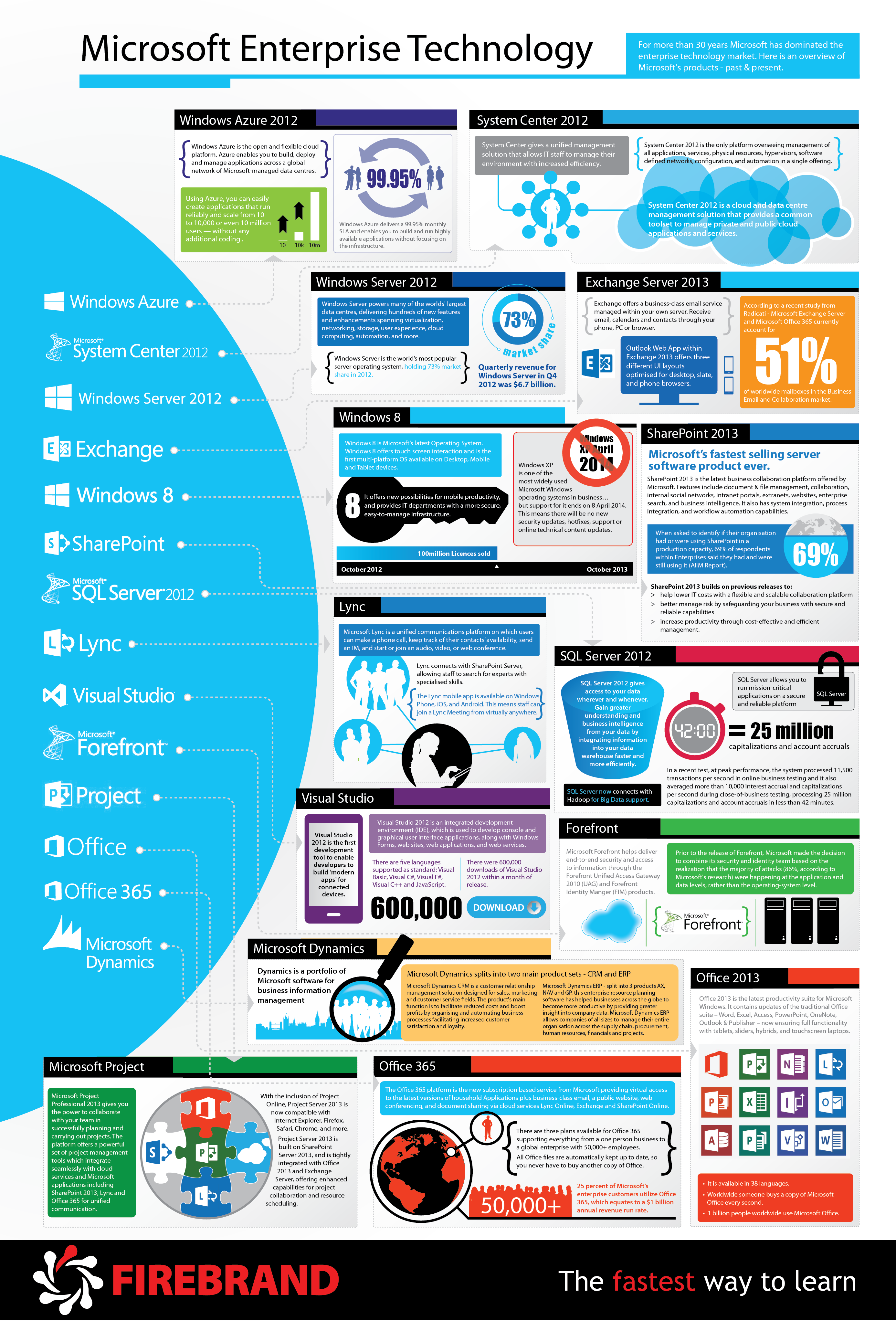
So as we usher in a new era, let's take a look at Microsoft's portfolio of enterprise technology, a sector that Nadella shaped and will continue to shape. The organisation is now synonymous with enterprise technology, and as you will see in this infographic from Firebrand Training, their is an extensive range of Microsoft products.

Before we dive into the graphic, let's pull out some of the highlights:
  • Microsoft Exchange Server accounts for 51% of worldwide mailboxes in the business and email collaboration market.
  • More than one billion people us Microsoft Office, that's roughly one in six of the world's population
  • Microsoft commands 73% of market share in the server operating system space
  • Visual Studio 2012 was downloaded 600,000 times in its first month following release.
Note: The graphic is quite large and can also be seen here: http://www.firebrandtraining.co.uk/images/infographics/microsoft-enterprise-technology.png


Meet Microsoft's new CEO, Satya Nadella


This article was written by , Technical Writer for Firebrand Training. Edward is tasked with servicing the information needs of the technology industry, and spends his days writing how-to guides, news and opinion articles.

Meet Microsoft's new CEO, Satya Nadella

On February 4, 2014, Microsoft announced the appointment of their new CEO, Satya Nadella. Stepping into the role with immediate effect, Nadella is tasked with guiding Microsoft in an ever-evolving marketplace, with tech savvy consumers constantly craving the 'next big thing'. If Microsoft are to stay relevant they must continue a long standing tradition of technological innovation and advancement.

This constant demand for innovation was no doubt a critical factor in Nadella's appointment, a trait he has consistently shown throughout his career. In 22 years working for Microsoft, Nadella has been a constant catalyst for change, spearheading the company's transition to the cloud, and significantly increasing the company's market share within the Server and Business tools sector.

He comes highly recommended with Bill Gates saying; “During this time of transformation, there is no better person to lead Microsoft than Satya Nadella.” High praise from a man responsible for founding the organisation for which Nadella now leads. Gates goes on to say; "His vision for how technology will be used and experienced around the world is exactly what Microsoft needs as the company enters its next chapter of expanded product innovation and growth."

So as we usher in a new era, let's take a look at Microsoft's portfolio of enterprise technology, a sector that Nadella shaped and will continue to shape. The organisation is now synonymous with enterprise technology, and as you will see in this infographic from Firebrand Training, their is an extensive range of Microsoft products.

Before we dive into the graphic, let's pull out some of the highlights:
  • Microsoft Exchange Server accounts for 51% of worldwide mailboxes in the business and email collaboration market.
  • More than one billion people us Microsoft Office, that's roughly one in six of the world's population
  • Microsoft commands 73% of market share in the server operating system space
  • Visual Studio 2012 was downloaded 600,000 times in its first month following release.
Note: The graphic is quite large and can also be seen here: http://www.firebrandtraining.co.uk/images/infographics/microsoft-enterprise-technology.png


Meet Microsoft's new CEO, Satya Nadella


This article was written by , Technical Writer for Firebrand Training. Edward is tasked with servicing the information needs of the technology industry, and spends his days writing how-to guides, news and opinion articles.